
Product documentation
Add a database connection
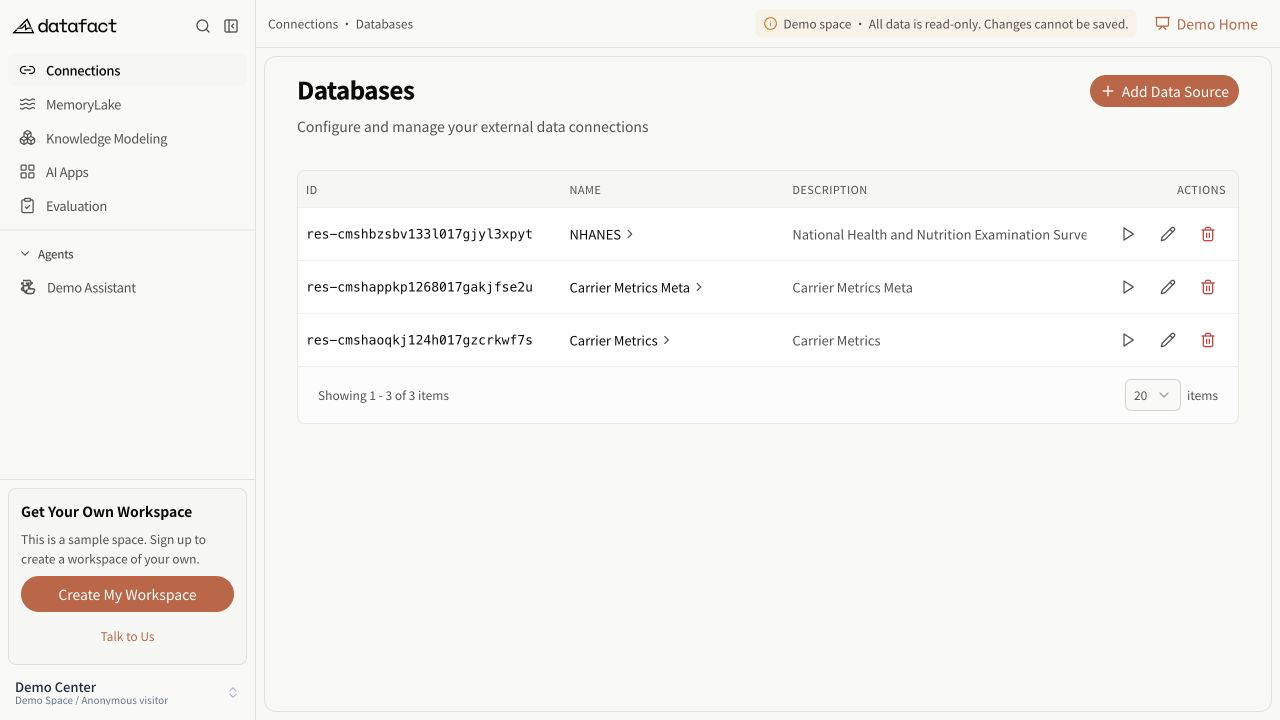
The Demo Space shows existing sample connections. Creating or editing a connection requires your own workspace.
A database connection makes selected schemas available to later structured-data workflows. You need corresponding access to use Databases.
Add the connection
- Open Databases.
- Select Add Database.
- In DataFact cloud, the form opens directly for an external data source. In another environment, choose a source type only when the form presents a selector.
- Choose Supabase, PostgreSQL, or MySQL, according to where the database is hosted.
- Enter the connection information shown for that choice. For Supabase, use the PostgreSQL connection details from the intended Supabase project.
- Select Test Connection.
- After verification succeeds, select at least one Schema.
- Select Save.
Saving is unavailable until the connection test has completed successfully and at least one Schema is selected.
Expected result
DataFact confirms creation and refreshes the database list. The new row shows connection metadata and can be opened to inspect structure after data is available.
Important rules
- Do not paste credentials into support messages or screenshots.
- Use a dedicated, least-privilege database account where your operating policy allows it.
- DataFact cloud creates external data sources only. Existing connections created under an earlier configuration can still appear in the list; their presence does not add another creation source type.
- A successful connection test verifies the submitted connection path at that moment. It does not guarantee that every table is valid for later analysis.