
Product documentation
Configure worksheet metadata
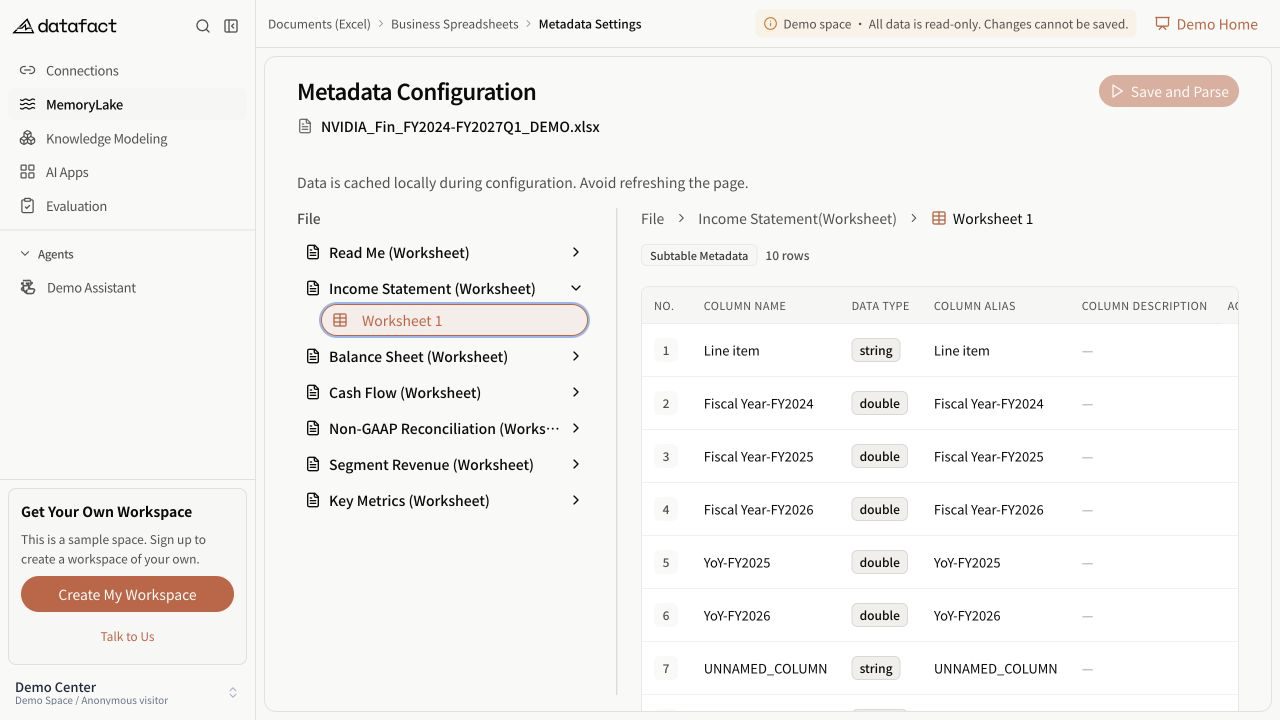
The metadata page lets you enrich detected worksheet and column structure with business-facing names and descriptions. It does not edit source cell values.
Edit a worksheet
- Open Metadata Settings for a successfully parsed file.
- Select a worksheet.
- Select Edit.
- Enter or clear the worksheet alias and description.
- Save the dialog.
The change remains local to the page until you save and parse the document.
Edit a column
- Expand a worksheet and select a detected subtable.
- Open the edit action for a column.
- Enter or clear its semantic name and semantic description.
- Save the dialog.
Apply changes
After at least one change, select Save and Parse. DataFact submits the complete worksheet metadata for reprocessing, confirms the request, and returns to the document list.
The action is unavailable when there are no unsaved changes, while the request is pending, or while the resource reports an active build.
Important limitations
The current page does not edit:
- source cell values or formulas;
- worksheet order or source worksheet names;
- detected subtable titles or ranges;
- detected data types; or
- the source file in the Document Library.
Clearing an alias or description removes that semantic value on the next save. Reprocessing can temporarily make the document unavailable to downstream workflows.
Errors and recovery
If saving fails, the page reports failure and does not navigate away. Keep the page open, review the edits, and retry. Do not assume local changes were persisted without success confirmation.