
Product documentation
Get your first answer
This tutorial uses an existing Agent. You will open the Agent, send one question, and identify whether the result completed, is waiting, needs your input, or failed.
Opening an Agent does not create a Session by itself. DataFact creates the Session when you send the first non-empty question.
Availability
You must be signed in and able to see at least one Agent. The Agent must also have a usable model and resources for the question you plan to ask.
If the Agent is not visible, the input is disabled, or the page says that a model is unavailable, do not continue with this tutorial. Ask the person responsible for the workspace to confirm which Agent you should use.
Before you begin
Choose a question that can be answered from the Agent's intended data or knowledge. For a first check, prefer a narrow question whose answer you can recognize, such as a definition, a known document fact, or a simple aggregate.
Avoid including passwords, access tokens, personal information, or other sensitive values in the question.
1. Open an Agent
- In the sidebar, find an Agent that is available to you.
- If the list is long, use Search agents… and enter part of the Agent name.
- Select the Agent.
The Agent workspace has a Session-history column and a Session panel. In a new Session, the panel shows the Agent name, optional description or greeting, and the question input.
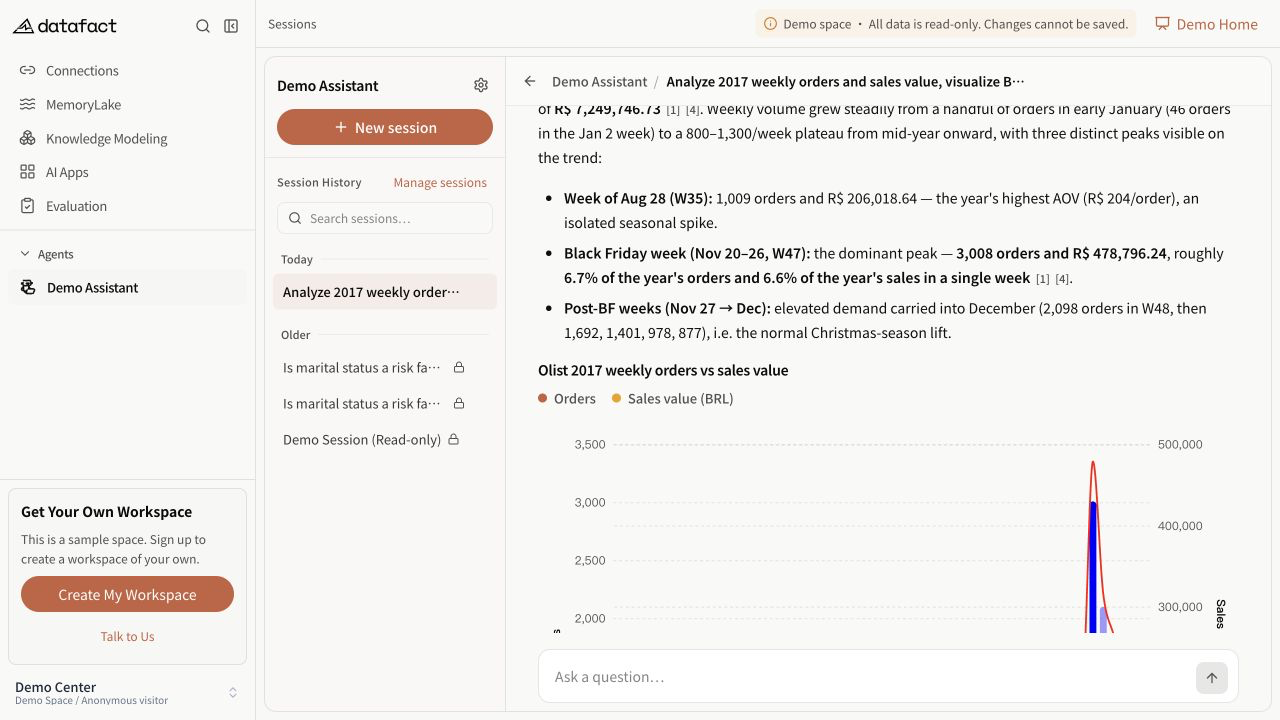
This image comes from the read-only online Demo Space. Agent names, data, and available controls vary by workspace.
2. Enter the first question
- Select the input labeled Ask a question….
- Type one complete question.
- Press Enter or select Send.
Use Shift+Enter when you need a new line without sending.
After the first non-empty question is submitted, DataFact creates a Session and begins the response. The Session then appears in the Agent's Session history. Returning to a blank new-Session state does not create another Session until a question is sent.
If a completed answer includes suggested follow-up questions, selecting one sends it through the same question flow. These suggestions come from that answer and are not guaranteed to appear.
3. Read the response state
The next state depends on the Agent, available capacity, and the work required by the question.
| What you see | Meaning | What to do |
|---|---|---|
| Waiting in queue and, when available, a position | The request has not started executing yet. | Wait, or use Cancel response if you no longer need it. |
| Thinking…, Processing…, or visible execution steps | The Agent is working on the response. | Keep the page open; use Cancel response only if you want to stop the current run. |
| Agent needs your input | The run cannot continue without a choice or text reply. | Complete the shown fields, then select Continue; use Skip only when the prompt allows it. |
| Final answer text | The response completed. | Read the answer and inspect any supporting material that is present. |
| A failure message | The response did not complete successfully. | Review the message. Retry only after correcting any visible prerequisite or narrowing the question. |
Do not treat execution steps as the final answer. A completed response may also include citations, charts, recommended follow-up questions, or generated files, but none of these are guaranteed for every Agent or every question.
4. Verify the answer
Before relying on the result:
- Check that the answer addresses the question you actually asked.
- If citations are present, open them and compare the supporting content with the answer.
- If a chart is present, read its title, axes, units, and legend before drawing a conclusion.
- If the answer indicates missing or ambiguous information, ask a narrower follow-up instead of assuming the omitted details.
Expected result
You have completed this tutorial when:
- your question appears as a user message;
- the Agent reaches a final answer or a clearly identified failure state; and
- the Session appears in the Agent's history after the first question is sent.
Common problems
- No Agent is visible: the tutorial's prerequisite is not met. Confirm which Agent is available to you.
- The input is disabled: read the explanation shown in the input area; you may not be able to ask in this Session.
- The request stays queued: wait for capacity or cancel the response. Do not submit duplicate questions to create parallel work.
- The answer failed: correct any visible prerequisite or make the question narrower before trying again.
- The answer has no citation: not every response contains citations. Do not invent a source; verify the answer through another available source before relying on it.
Related guides
- DataFact workflow overview
- Citation tracing, queue recovery, and question-writing guides remain in the reviewed editorial backlog.