
Product documentation
Browse worksheets
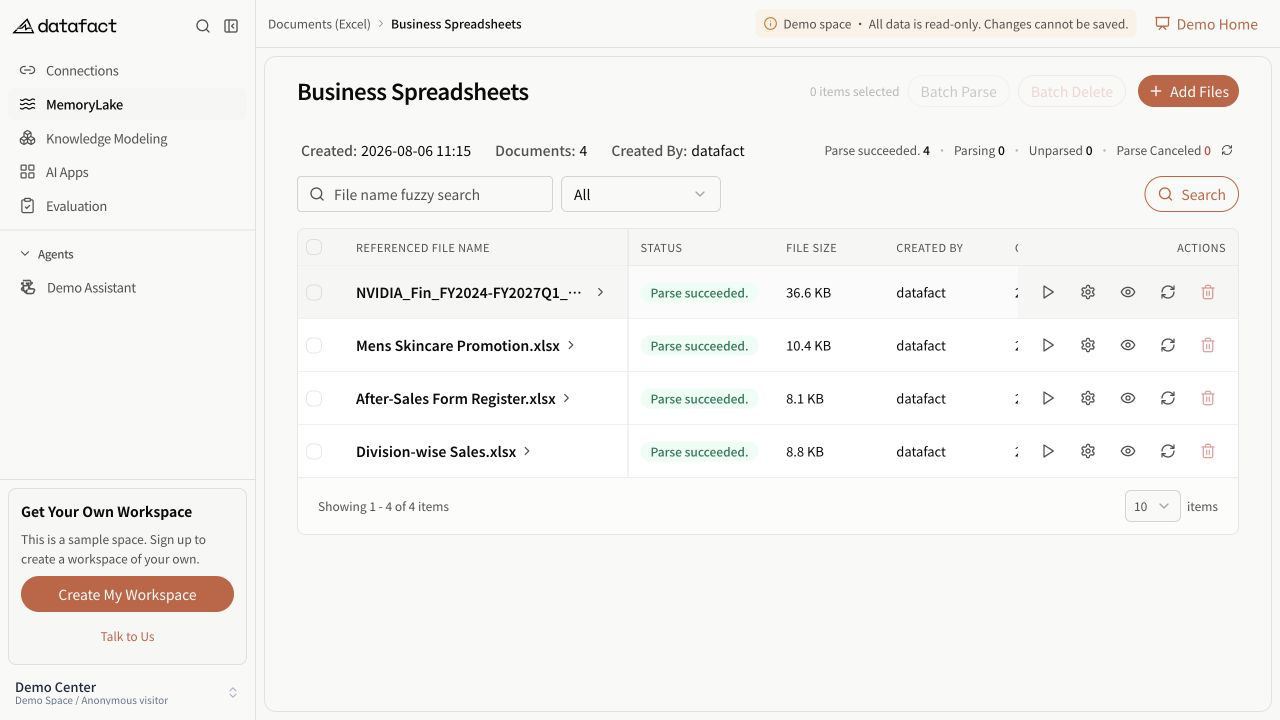
After parsing succeeds, open Metadata Settings for the file. The page places the worksheet tree on the left and the selected content on the right.
Navigate the structure
- Select a worksheet in the left pane.
- Review its source name, number of detected subtables, semantic alias, and description.
- Expand the worksheet when subtables are available.
- Select a subtable to view its detected columns.
- Read each column's source name, detected data type, semantic name, and semantic description.
The breadcrumb follows the current worksheet and subtable. Use it to return to the worksheet or root document view. The divider between the panes can be resized with pointer or supported keyboard controls.
Empty and error states
- A worksheet with no detected subtable shows a zero count; it does not imply that the source sheet was empty.
- A subtable with no detected columns displays an empty table state.
- If no worksheets are returned, the page has no structure to navigate. Return to the document list and review parsing.
- If the dataset or metadata cannot be loaded, the page displays a not-found state rather than guessed worksheet content.